LiteScroll SEO Inspector Chrome Extension: Install and Use
What the LiteScroll SEO Inspector checks, how to install it from a ZIP file, how safe it is, fixes for common problems and other options.
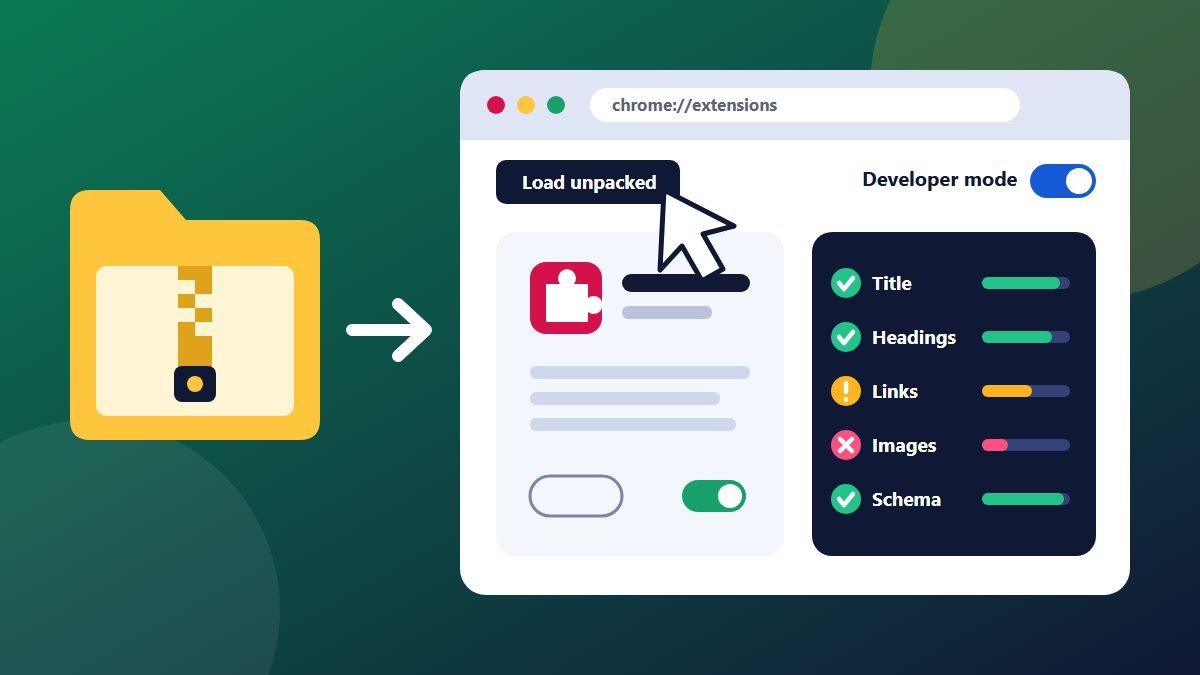
Key points
- It checks one open page, and it does not crawl a whole site.
- It is installed from a ZIP file with Chrome Developer mode.
- Read its permissions and use a separate Chrome profile.
- View Source, Lighthouse and Search Console cover most of the same checks.
The LiteScroll SEO Inspector Chrome extension checks the SEO details of the page that is open in your browser. It shows the title, meta description, headings, links, images, schema, social tags and keyword placement in one panel. It is listed as free, and it is installed from a ZIP file because its download page says it is not on the Chrome Web Store yet.
LiteScroll.org is an independent blog and does not own or host this extension. The details come from the public pages of LiteScroll .com, read on 23 November 2026. We have not installed the extension, so this guide explains what its maker lists and what to check before you add it.
LiteScroll .com SEO Inspector Chrome Extension: Key Facts
| Point | Detail |
|---|---|
| Purpose | On-page SEO check of one open page |
| Price | Listed as free |
| Version listed | 0.3.3 |
| Download type | ZIP file from LiteScroll .com |
| Install method | Chrome Developer mode, Load unpacked |
| Exports | Copied summary, copied headings, JSON, HTML or PDF style report |
| Full site crawl | No, that is the job of the SEO Crawler |
What the LiteScroll SEO Inspector Checks
The panel groups its checks by page element. Here is what each group tells you and what to do with it.
Meta Title and Description
The extension shows the text and the character count. Aim for a title of about 50 to 60 characters with the main topic near the start. For the description, about 150 characters is a practical target. Google can rewrite both, so write for the reader first.
H1 to H6 Headings
You see the headings in order, and the Copy All Headings button copies the full outline. A clean page has one H1, then H2 sections, then H3 points under them. Paste the outline into a document and read it alone. If the order does not make sense without the text, the page needs editing.
Links and Indexing Signals
It counts internal, external and nofollow links, and it shows the canonical URL and the robots meta tag. Check the robots tag first. A noindex on a page that should rank is more serious than any title problem.
Images
It lists images without alt text, lazy loaded images, and images without width or height. Missing width and height can make the layout jump while the page loads.
Schema and Social Tags
It detects JSON-LD, microdata, Open Graph and X card tags. Detection only shows that the code exists. Use Google’s Rich Results Test to see whether it is valid.
Keyword Placement
You type one target keyword and it checks the title, description, H1, headings and page content. It does not show search volume or difficulty. Treat a missing place as a question, not an order. Forcing the same phrase into every heading makes a page harder to read.
How to Install the LiteScroll SEO Inspector Chrome Extension
- Open the download page on LiteScroll .com and save the ZIP file.
- Extract the ZIP to a folder that you will not move or delete.
- Type chrome://extensions in the address bar and press Enter.
- Turn on Developer mode at the top right.
- Click Load unpacked and choose the extracted folder.
- Click the puzzle icon in Chrome and pin the extension.
- Open a normal website, reload it once and click the icon.
Chrome may show a reminder about Developer mode extensions. That is normal for an extension added by hand.
Is the LiteScroll SEO Inspector Safe?
We cannot confirm that it is safe or unsafe without a code review. An extension from a ZIP skips the Chrome Web Store review, and it does not update by itself. Use this checklist before you decide.
- Source: use only LiteScroll .com. Sites with a similar name may offer their own file.
- Permissions: after loading it, open Details and read what it can access.
- Site access: set it to On click, if Chrome offers that choice, so it runs only when you press the icon.
- Profile: use a separate Chrome profile with no email, bank or WordPress login.
- Client work: ask before you inspect private or staging pages.
Turn It Off When You Are Done
Open chrome://extensions and switch it off, or click Remove. If you use no other unpacked extension, turn off Developer mode too, then delete the folder.
How to Use It on a Blog Post
This order takes a few minutes and covers the points that matter most.
- Robots and canonical. The page should be indexable and the canonical should point to itself.
- Title. It should match the search you want, and no other post should use it.
- H1 and outline. Copy the headings and look for gaps or repeats.
- First paragraph. Check that the keyword topic appears naturally at the start.
- Images. Add alt text where the image gives information.
- Internal links. Link to at least two related pages that help the reader.
- Export. Save the JSON or report, then compare it after you edit.
A Small Example
Suppose a post about running shoes shows a 78 character title, two H1 tags and six images without alt text. Shorten the title first, change the second H1 to an H2, and describe the images that show products. Leave decorative icons with empty alt text. Reload the page and inspect it again.
LiteScroll SEO Inspector Not Working: Fixes
| Problem | Likely cause | Fix |
|---|---|---|
| Load unpacked is missing | Developer mode is off | Turn it on and look again |
| Manifest file error | Wrong folder selected | Select the folder that contains manifest.json |
| No data on a page | The page is restricted | Chrome pages, extension pages and the Web Store cannot be inspected |
| Old data is shown | The tab was open before the install | Reload the tab |
| The icon disappeared | It is not pinned | Pin it from the puzzle menu |
| It stopped after a restart | The folder was moved | Put it back or load it again |
| Export does nothing | Downloads or pop-ups are blocked | Allow them for that action and retry |
| The button is greyed out | A work or school policy | Use a personal computer |
Can You Use It on Edge, Brave or a Phone?
Edge and Brave are built on Chromium and support Load unpacked, though LiteScroll .com only describes Chrome. Chrome on Android and iPhone does not support desktop extensions like this one.
SEO Inspector or SEO Crawler?
| Need | SEO Inspector | SEO Crawler |
|---|---|---|
| Check one page in detail | Yes | Limited |
| Scan many pages | No | Up to 25 per free scan |
| Install needed | Yes | No |
| Copy a heading outline | Yes | Not listed |
| Find the same issue across a site | No | Yes |
For the crawler, pricing and the Pro audit, read our full LiteScroll .com guide.
Other Ways to Check a Page Without This Extension
- View page source: press Ctrl + U in Chrome and search for title, description or robots.
- Search Console URL Inspection: shows how Google sees a page on a site you own.
- Rich Results Test: checks structured data.
- Lighthouse in Chrome DevTools: includes basic SEO, accessibility and speed checks.
- Extensions in the Chrome Web Store: several SEO extensions install and update from the store.
Frequently Asked Questions
Is the LiteScroll SEO Inspector Chrome extension free?
Yes. LiteScroll .com lists it as a free extension.
Is it available on the Chrome Web Store?
Its download page described a manual ZIP install on 23 November 2026. Similar names in the store may belong to other developers, so check the developer before you install.
Does it crawl a whole website?
No. It checks the page you are viewing. LiteScroll SEO Crawler is the tool for several pages.
Does it show keyword volume?
No. Its keyword tab checks where a keyword appears on the page.
Can I export a report?
Yes. Its page lists a copied summary, JSON, and an HTML or PDF style report.
Will it update automatically?
An unpacked extension does not update from the Web Store. You would need to download a newer ZIP and load it again.
Can it inspect password protected pages?
It reads the page open in your browser, so it may read a page you are logged in to. Turn it off before you open private accounts.
Final Verdict
The LiteScroll SEO Inspector Chrome extension suits someone who edits pages often and wants the title, outline, links and images in one panel. If a manual install worries you, use View Source, Lighthouse and Search Console instead. They cover most of the same checks.
Leave a Reply